

Nothing launches new app to unify CMF Watch & audio devices
Nothing has launched a new app to coincide with the release of the CMF Watch 3 Pro. It replaces the old CMF Watch software and pulls all Nothing wearables and audio products under one roof.
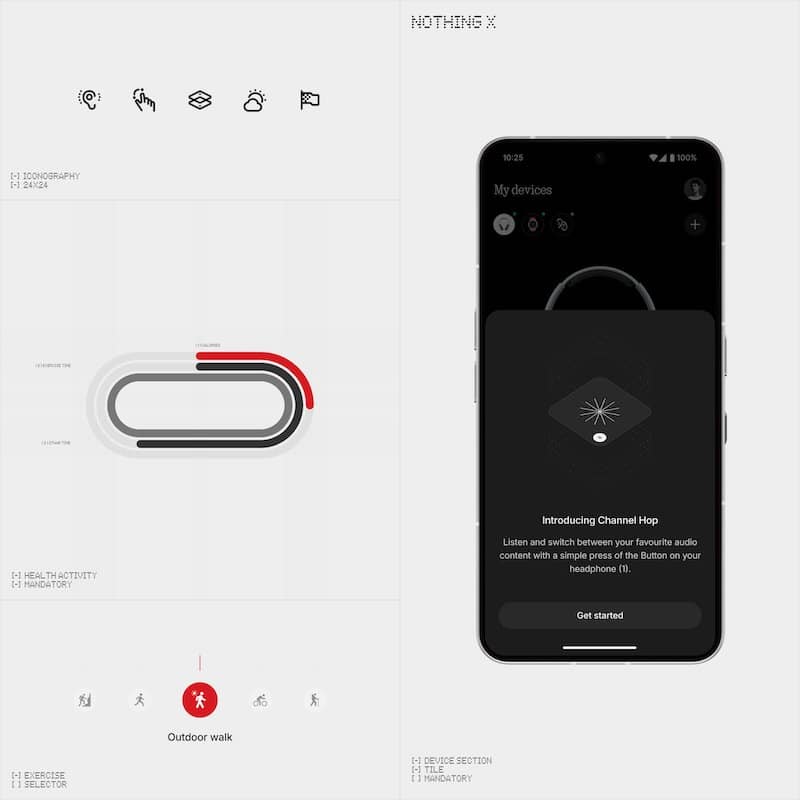
The refreshed Nothing X app is now available on both Google Play and the App Store. It brings a new interface that is faster, more stable and easier to navigate. You get better control over your devices, and the experience feels more polished overall. The company says the underlying architecture is built with future CMF Watch development in mind.
You can manage your smartwatch, earbuds and more, all in one place. There’s also a noticeable improvement to GPS performance on the CMF Watch 3 Pro. Tracking should feel sharper and quicker to lock, which suggests some backend improvements have been made.

The split is going away
Up until now, users had to juggle between the CMF Watch app and Nothing X. That split setup is going away. The older CMF Watch app will remain functional until July 2026, giving everyone a decent window to make the switch.
The company previously ran a Beta version of this new app, and that included a built-in migration assistant. It’s likely that same process will apply here too. When you pair your CMF Watch, a guide appears that walks you through how to move your data from the old app to the new one. Once the migration begins, your CMF Watch account is deactivated and you won’t be able to log back into it.
You can migrate data going back to October 2023. That includes your workout history, sleep, heart rate, blood oxygen, stress, and daily activity stats. If you were using the Watch Pro 2, it will also bring over your Active Score and training load. Fitness goals can be carried across as well.
Essential reading: Top fitness trackers and health gadgets
Some things won’t make the jump. Your nickname, avatar, height, weight and female health data will need to be added again manually. That information is tied to key physiological readings, so entering it correctly is important. Custom watch faces also won’t carry over, but they can be set up again in the new app.
If anything goes wrong during migration, you can report it directly from within the app. Just head to My Page, then Support, then My Devices, and select Send Feedback. Make sure to include both your app logs and firmware logs when submitting a report. That way the team has everything they need to look into it.
Subscribe to our monthly newsletter! Check out our YouTube channel.
